WooCommerce reviews are a great way to engage with your customers around your products. If you have an established e-commerce site that doesn’t have product reviews enabled, you might be surprised to find there is no way to bulk enable them out of the box.
Let’s solve that.
Step 1: Enable WooCommerce Reviews
The first step is to ensure that WooCommerce reviews are enabled in the main settings. Go to WooCommerce > Settings > Products and make sure Enable product reviews is checked:
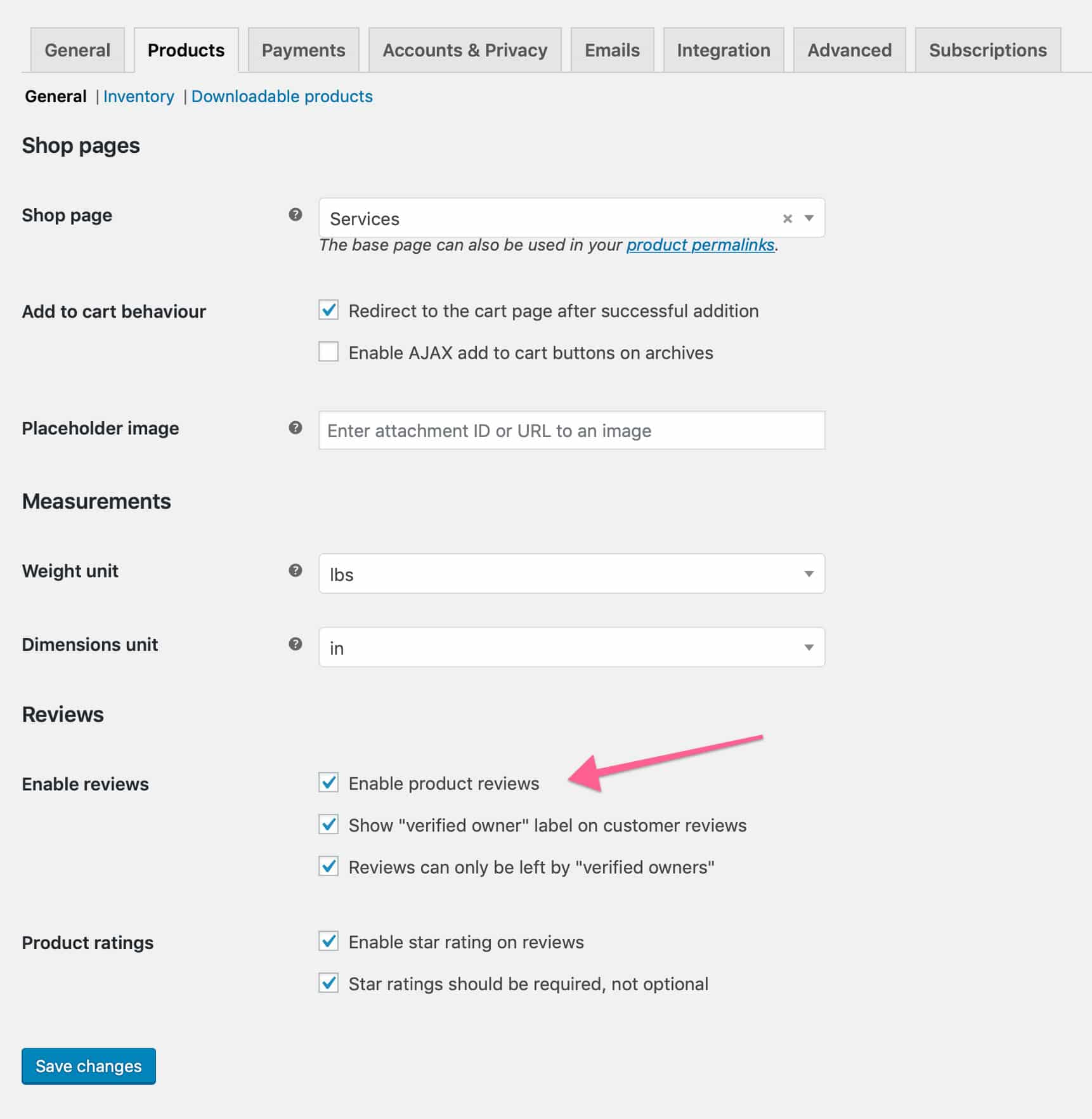
You can also choose other product review settings like enabling star ratings or whether a reviewer is required to have purchased the product before reviewing. I personally like these options.
Enable reviews on a per-product basis
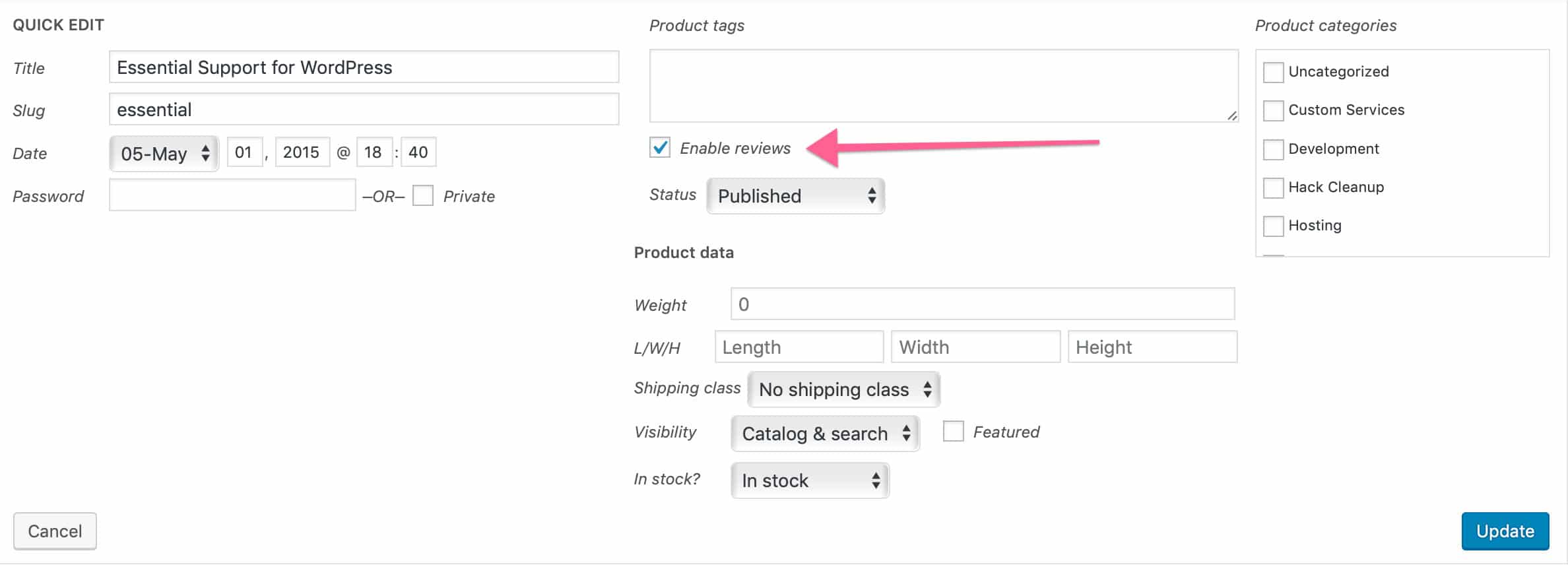
Once the global WooCommerce reviews have been enabled, you will need to enable reviews on a per product basis. Any product that was created before enabling reviews will be set to disabled.
To enable, choose the Quick Edit button on a product and there you will find a checkbox to enable reviews for that product:
Enable reviews on a bulk-product basis
The bulk edit feature in WordPress is pretty great for changing things en masse on posts and products. I was surprised to find that there is no option for enabling reviews when bulk editing products. For e-commerce site owners with a lot of products this can be a problem.
Thankfully Mario Valney has provided us with a quick plugin to do so. He has posted the plugin as a gist on Github that you can find here:
<?php
/**
 *
 * Plugin Name:       WooCommerce Enable Reviews - Bulk Edit
 * Description:       Allow enable reviews by bulk edit into WooCommerce
 * Version:           1.0.0
 * Author:            Mário Valney
 * Author URI:        http://mariovalney.com
 * Text Domain:       woo-enable-reviews-bulk-edit
 *
 */
add_action( 'woocommerce_product_bulk_edit_end', 'wcerbe_woocommerce_product_bulk_edit_end' );
function wcerbe_woocommerce_product_bulk_edit_end() {
    $output = '<label><span class="title">' . esc_html__( "Enable reviews", "woocommerce" ) . '?</span>';
    $output .= '<span class="input-text-wrap"><select class="reviews_allowed" name="_reviews_allowed">';
    $options = array(
        ''    => __( '— No change —', 'woocommerce' ),
        'yes' => __( 'Yes', 'woocommerce' ),
        'no'  => __( 'No', 'woocommerce' ),
    );
    foreach ( $options as $key => $value ) {
        $output .= '<option value="' . esc_attr( $key ) . '">' . esc_html( $value ) . '</option>';
    }
    $output .= '</select></span></label>';
    echo $output;
}
add_action( 'woocommerce_product_bulk_edit_save', 'wcerbe_woocommerce_product_bulk_edit_save', 10, 1 );
function wcerbe_woocommerce_product_bulk_edit_save( $product ) {
    // Enable reviews
    if ( ! empty( $_REQUEST['_reviews_allowed'] ) ) {
        if ( 'yes' === $_REQUEST['_reviews_allowed'] ) {
            $product->set_reviews_allowed( 'yes' );
        } else {
            $product->set_reviews_allowed( '' );
        }
    }
    $product->save();
}
Save this code as a file, then zip it, then install as any new WordPress plugin. Remember that WordPress requires a plugin to be in zip format if you want to upload from the admin. You can also simply download the gist from Github as a zipped file.
Once you install and activate the plugin, you can now bulk edit products by choosing two or more products, clicking on the Bulk Actions select button and find the ability to enable (or disable) reviews:

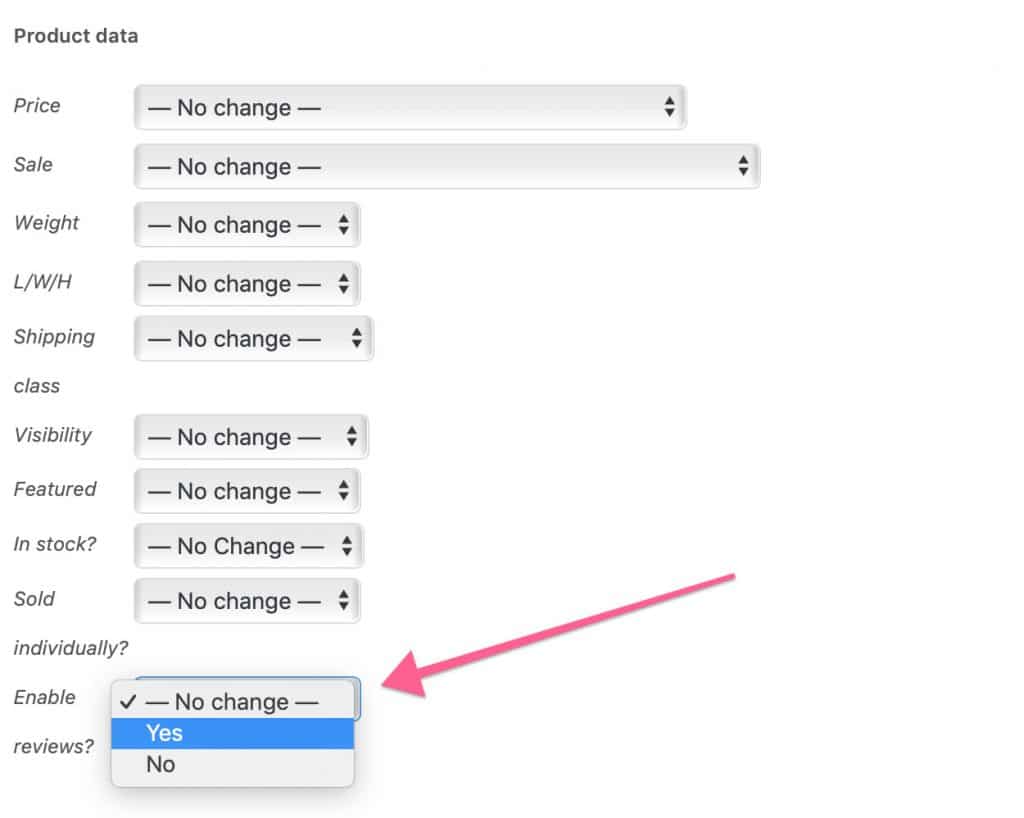
There you have it, easy bulk enabling of reviews. There are other ways to do it via phpMyAdmin, but I’ve found this to be much easier. Feel free to delete the plugin once you’re done.
Leave any questions or comments below, leave a review on iTunes, and don’t forget to like and subscribe, it really helps the channel.
Cover Photo by Josh Campbell on Unsplash


24 comments
ant_topps
Thank you for the snippet. Worked a charm! Only issue i had was timing out more server. Had to update in small batches.
Dr
Dear Bryan Hoffman
I installed the plugin but when I change Enable to Yes, there isn’t any text box to write the comments.
Bryan Hoffman
Could be lots of reasons for that Doc. Your theme could be hiding them in the template or via a function. Switch to a default theme and try it there.
Sam
UPDATE – This is native in WooCommerce and has been for a while. No code or plugins are needed. Select all your products using bulk editing, on the edit screen at the top right you will see “Enable comments” set this to allow and update.
Comments are how the WooCommerce review system works.
Bryan Hoffman
Thanks for the updated info, Sam.
Sam
Perfect works great! However, I am unsure why Woocommerce has this not natively built in? Sometimes, it seems not to work even if all the settings are correct. You should be able to do this within Woocommerce and not have to resort to a plugin. Manually is only possible if you have a few products. Can you imagine if you have 500?
Simon
awesome – thanks for this info – very useful and still working!!
Vovka
Many thanks! Works just fine.
Added too my child theme with author credits)
Terry
Thanks for the code, it really helps.
PrintableResumes.com
It works like a charm! Thank you, you saved me from hours editing …
Bryan Hoffman
Nice, glad it worked for you :)
Ariel
Could you suggest to me a trick or plugin for WordPress:
Once the customer submitted a review – it’ll go across all selected products automatically.
Thank you in advance.
Bryan Hoffman
Hi Ariel,
I’m not aware of a current plugin that will do this, sorry. BTW, why would you want someone to write a single review on multiple products?
yagami
Thank you very much mate !
Jeremy
You can add the code snippet to your functions.php file rather than create a plugin if you’d rather.
Bryan Hoffman
Yes, that certainly works as well. If you go this route and use an actively developed or premium theme, be sure to add it to
functions.phpin a child theme.Biswas
Thank you, works great…
Mário Valney
Thank you for sharing! :)
SEBASTIAN VELANDIA
Wonderful you saved my life
Ellie
Installed and activated the plugin, when I am using it it errors my products page to ‘503 Service Unavailable. The server is temporarily busy, try again later!’. I click the back button and it has bulk updated the products so it is working, do you have any ideas on how to stop getting the 503 message? Thank you
Bryan Hoffman
Hi Ellie,
I’m assuming you activated WooCommerce here… If you’re running into 503 errors I’d guess your server is struggling to keep up. Check your error logs – they should give you a solid hint.
M Breden
Where exactly inside Woo do I find this new ability to bulk edit? Spent the last 20 minutes looking for where to change the setting after installing and activating the plugin. Might have been some good info to include in your article.
Bryan Hoffman
I assumed that ‘bulk editing’ products would be self explanatory, but I can see why it’s confusing. I’ve updated the article, adding instructions on bulk editing.
Paul
Thanks for the info! I was looking for a way to bulk enable reviews in WooCommerce and as you mentioned, I was surprised as well to see that there was no way of doing it by default. This did the trick!